Product Reviews

How to Test a Refurbished Laptop Before the Return Window Closes
A refurbished laptop is a bet with a deadline. The machine arrives, it boots, the desktop looks fine, and you get on with your week — until day nineteen, when the fan starts whining and you discover the return window closed yesterday. The good news is that almost every problem worth returning a laptop for can be found in about two hours of deliberate testing, and you can do it with things you already own: a flash drive, a pair of headphones, a monitor cable, and a dark room.
What follows is the routine worth running on any refurbished machine, in roughly the order that makes sense. Do the paperwork first, since it defines the standard the laptop has to meet. Then test the expensive, awkward parts — battery, screen, input, thermals — while you still have leverage.
Write Down What You Were Promised
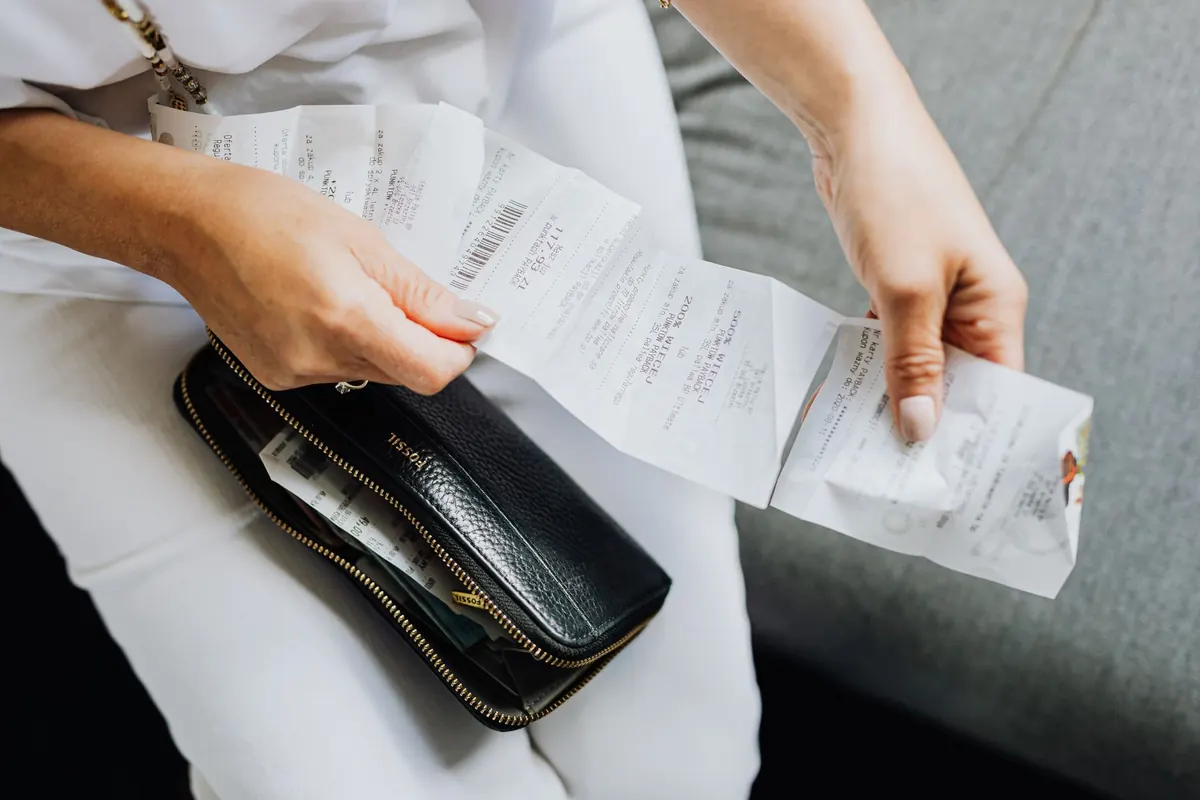
Before you peel anything off the lid, open the order confirmation and the original listing side by side. Copy the specifics into a plain text file: the exact CPU model, how much RAM, the size and type of the storage, the screen resolution and panel type, the operating system and edition, whether a charger was included, the cosmetic grade, the stated battery condition, the warranty length, and the return window in days. Vague descriptions ("i7, 16GB, fast SSD") are exactly where refurbished machines drift from the truth.
Then find the serial number on the bottom panel or under the battery, and look it up on the manufacturer's support site. You want two things: the machine's original configuration, so you can confirm the memory and storage match what you paid for, and the warranty status. A laptop sold as "manufacturer warranty until next spring" that the manufacturer says went out of coverage two years ago is a conversation to have on day one, not day twenty.
Photograph the box, the seals, and the labels before you open them. Note the delivery date and count forward. Put the deadline in your calendar four days early — the buffer is for the phone calls and emails that always take longer than you expect.
Battery Health: The Number That Decides the Deal
A worn battery is the most common hidden flaw in a refurbished laptop, and it's the one sellers are least likely to volunteer. Every major platform will tell you what you need to know for free.
- Windows: open Command Prompt and run powercfg /batteryreport. It writes an HTML file with design capacity and full charge capacity. Divide the second by the first.
- macOS: hold Option and click the Apple menu, choose System Information, then Power. Look at Cycle Count and Condition.
- ChromeOS: open crosh with Ctrl+Alt+T and run battery_test.
- Linux: upower -i followed by the battery device path gives you capacity and design capacity.
Anything below roughly eighty percent of design capacity on a machine sold as "good condition" deserves a question to the seller. A high cycle count isn't automatically a problem — it tells you how the laptop was used — but it should match the description you paid for. Bear in mind these readings are estimates and they drift. If the number looks bad, run a full charge, use it unplugged for half an hour of light work, charge it again, and re-read. If it still looks bad, it is.
The Screen: Dark Room, Bright Room
Open a full-screen image of solid white, then black, then red, green, blue, and mid-grey, and look at each one from a normal working distance. Dead pixels show up as dots on the white and grey fills; stuck pixels show on the coloured ones. On the black fill in a dark room you'll see backlight bleed at the corners and edges. Some of that is normal on IPS panels, so ask yourself a practical question instead of a technical one: would you notice it during a film at night?
Keep the white fill up at full brightness and look for dust trapped under the panel, faint pressure marks, and the ghost of the keyboard on the coating. Tilt the screen through its full range and watch for scratches that only appear at certain angles. Then test the hinge: it should hold position firmly at every angle without wobble, and the lid should close without needing a shove.
Keyboard, Trackpad, and Every Port
Open a text editor and type a sentence containing every letter, number, and symbol, then work along the function row one key at a time. Use an online keyboard tester if you want a visual confirmation. A key that registers twice on one press, or needs a hard stab to register at all, is a fault — not "just how it feels". Check the backlight at each brightness level and confirm the brightness and volume keys actually change something.
For the trackpad, test a physical click at all four corners, two-finger scrolling, three-finger gestures if the machine supports them, and palm rejection by typing a paragraph with your wrists resting naturally. A trackpad that jumps while you type will make you hate the laptop within a month.
Now the ports — all of them, with real devices, not just cables plugged in to see if they fit:
- Every USB-A port with a flash drive, confirming the drive appears and transfers a file.
- USB-C for data and, separately, for charging in both directions if the laptop supports power delivery.
- HDMI or DisplayPort to an actual monitor, at the resolution and refresh rate you plan to use.
- The SD card reader, if there is one, with a card you don't mind risking.
- The headphone jack with known-good headphones, listening for crackle or a dead channel.
- Webcam and microphone: record a ten-second clip and play it back. Look for focus, colour, and hiss.
- Wi-Fi on both bands and Bluetooth with a mouse or earbuds; Ethernet too, if it's there.
- The charger: wiggle the plug where it meets the laptop. A loose barrel connector or a frayed cable is a return reason, not a later problem.
Heat, Fans, and a Workload That Means Something
Leave the laptop idle for ten minutes first. The palm rest should feel neutral, and the fan should be silent or barely audible. Then give it real work: a long video call, a game, a large photo export, or a benchmark loop for fifteen minutes. Watch the clock speed in Task Manager or a monitoring utility — if it drops sharply and stays down, the cooling system is struggling, which on a refurbished machine often means dust or dried thermal paste.
Listen carefully. A steady whoosh is fine; a rattle, whine, or periodic click points to a failing fan bearing, and that gets worse, not better. Check where the exhaust air leaves the chassis and whether it's hot enough to be uncomfortable after a minute. Finally, test sleep: close the lid, leave it for ten minutes, and open it. It should wake promptly and the battery should not have dropped much. A laptop that drains in a closed bag is a laptop with a problem.
Keep the Evidence, Then Decide
Record a single timestamped video walking through the machine — serial number, screen fills, battery report, ports — and keep the screenshots in the same folder as your order confirmation. Save the box and packing materials until the window closes; you'll need them if you return it, and sellers often require the original packaging.
If something is wrong, email rather than phone. Describe the fault, attach the evidence, and state what you want: a replacement, a partial refund, or a return. Written records move these conversations along. Return policies vary by seller and by where you live, so read the terms you agreed to and, if you're unsure what you're entitled to, ask a local consumer advice service before the deadline passes.
A Two-Evening Plan
Evening one: unbox, photograph, verify the specs and warranty, run the battery report, and go through the screen fills. Evening two: do your actual work on it for two hours with every port in use, then push it hard and listen. That leaves you several days of normal use before the deadline, which is exactly the margin you want. Decide with time to spare, while the choice is still yours.
Photo: Pixabay / Pexels
Related Articles